

Created
: 2022.08.05














On MetaTrader4 (MT4) / MetaTrader5 (MT5), you can enter symbol, timeframe, date, and time in the fast navigation bar to quickly customize your chart.
Here we will look at how to use the fast navigation bar on MT4/MT5.
Switch between MT4/MT5 tabs to check the steps for each.


Click the chart for which you use the fast navigation bar and press "Enter" on your keyboard to show the fast navigation bar in the bottom left corner of the chart. You can also show it by double-clicking the bottom left corner of the chart.
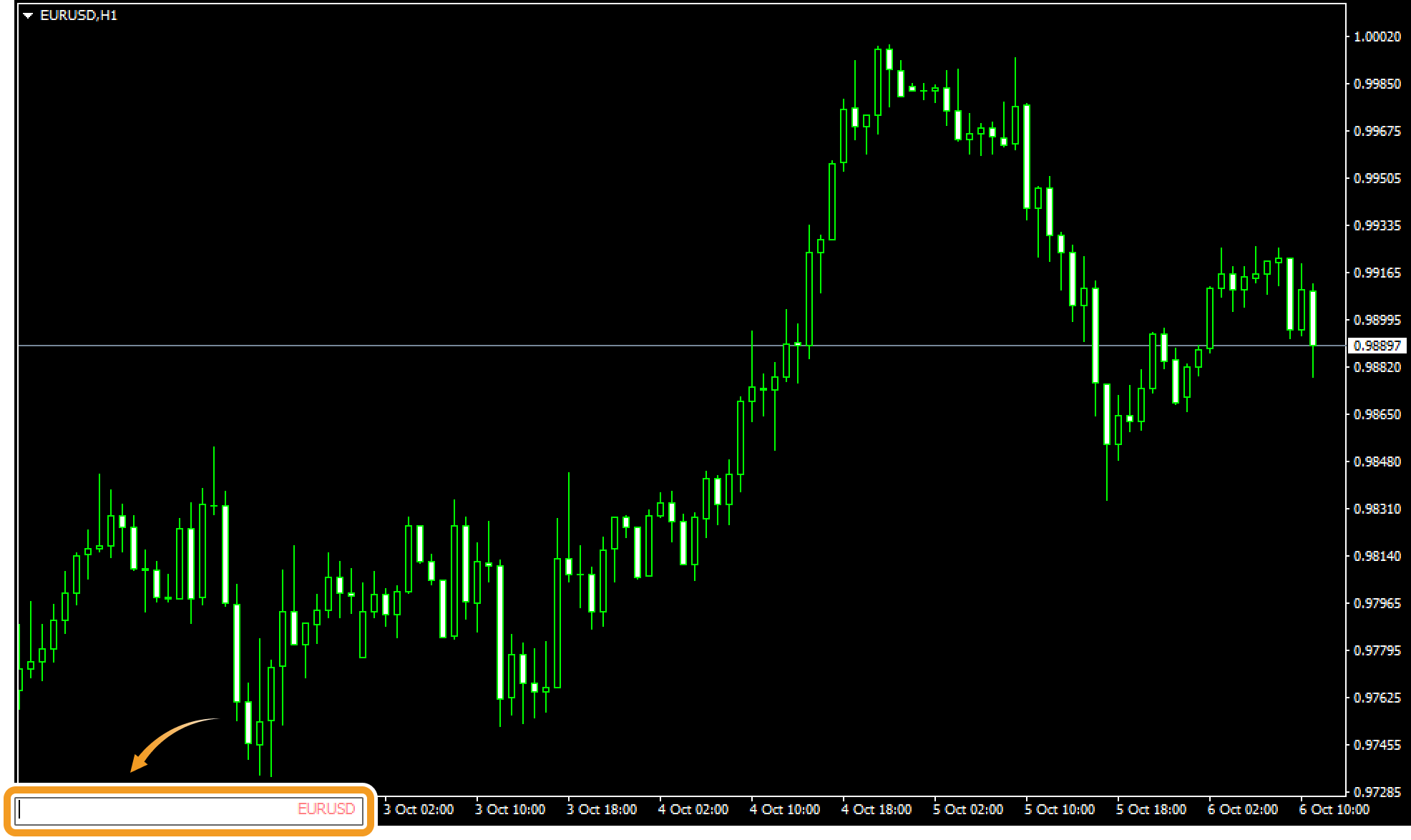
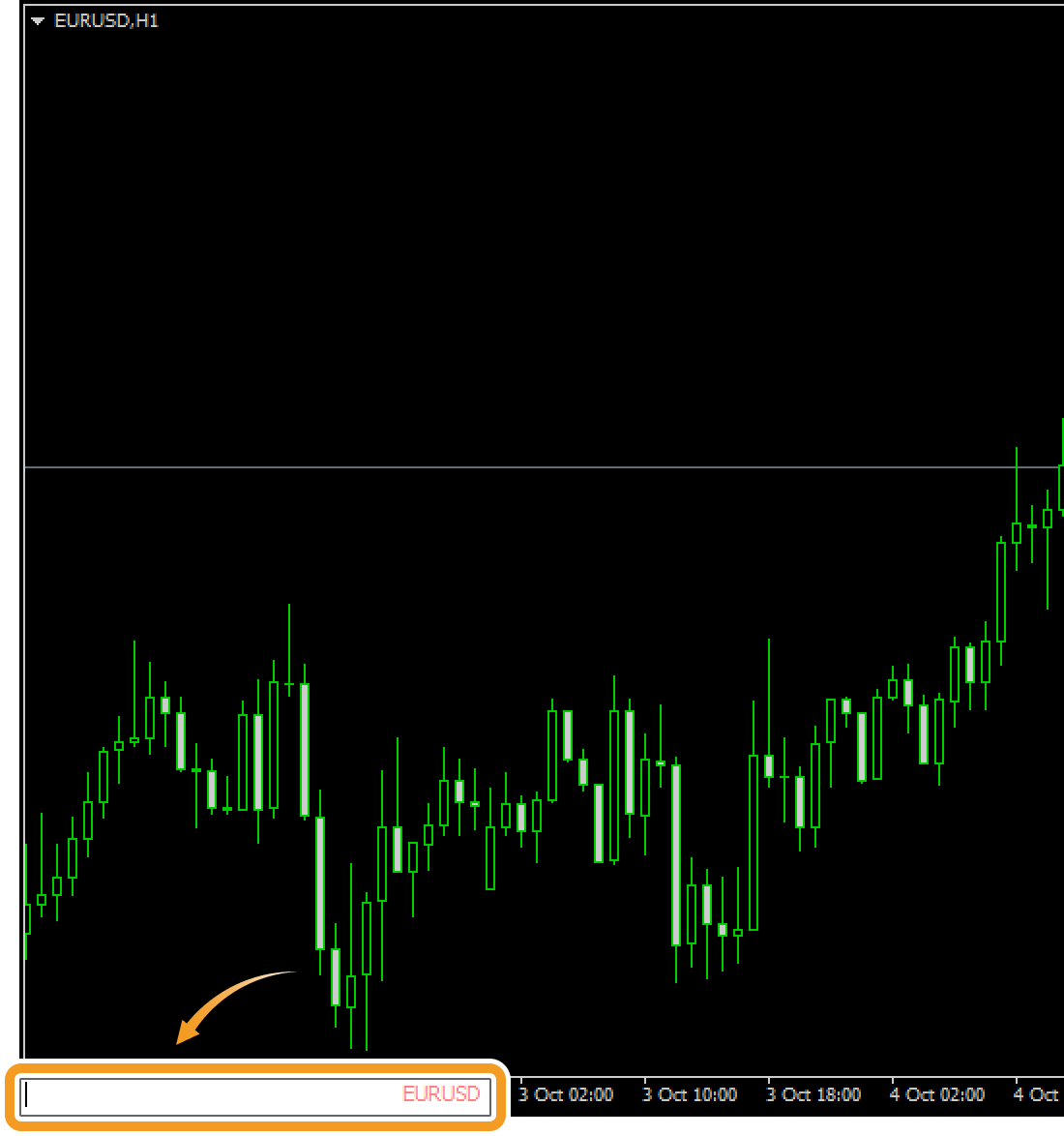
Type a symbol, timeframe, date and time in the following format to switch between charts.
| Item | Descriptions |
|---|---|
| Symbol | Enter the symbol name, e.g., to display a USDJPY chart, type "USDJPY". You need to add a symbol to the Market Watch, if it's not there.(*1)
Related article:Manage symbols in Market Watch |
| Timeframe | Enter "m1" for 1-minute timeframe, "h1" for 1-hour timeframe, "w" for 1-week timeframe, and "mn" for monthly timeframe. E.g., to display a 30-minute chart, type "m30". |
| Date | Enter the date based on the MT4 server time. E.g., to display a chart for February 1st, 2021, type "2021.2.1" or "2021.02.01". (*2) |
| Time | Enter the time based on the MT4 server time. E.g., to display a chart for 7:05 AM, type "7:5" or "07:05". (*2) |
(*1)Some brokers include a suffix in the symbol name. Ensure you provide the full symbol name, including the suffix. For example, "USDJPYs".
(*2)The chart might not update if the historical data for the specified date has not been downloaded.
 Turn off auto-scroll when specifying date
Even if you specify the date in the fast navigation bar to show the chart of a particular period, the chart will be updated to the current time unless "Scroll the chart to the end on tick incoming" is turned off. You can click the "Scroll the chart to the end on tick incoming" icon on the menu to turn it on and off.


 Symbol and timeframe can be combined on MT5
On the fast navigation bar, you can specify date and time to display a chart. Moreover, in MT5, you can specify symbol and timeframe as well. For instance, if you want to display the minute chart for EURJPY, enter "EURJPY m1" with a space between the symbol and the timeframe.
Click the chart for which you use the fast navigation bar and press "Enter" on your keyboard to show the fast navigation bar in the bottom left corner of the chart. You can also show it by double-clicking the bottom left corner of the chart.
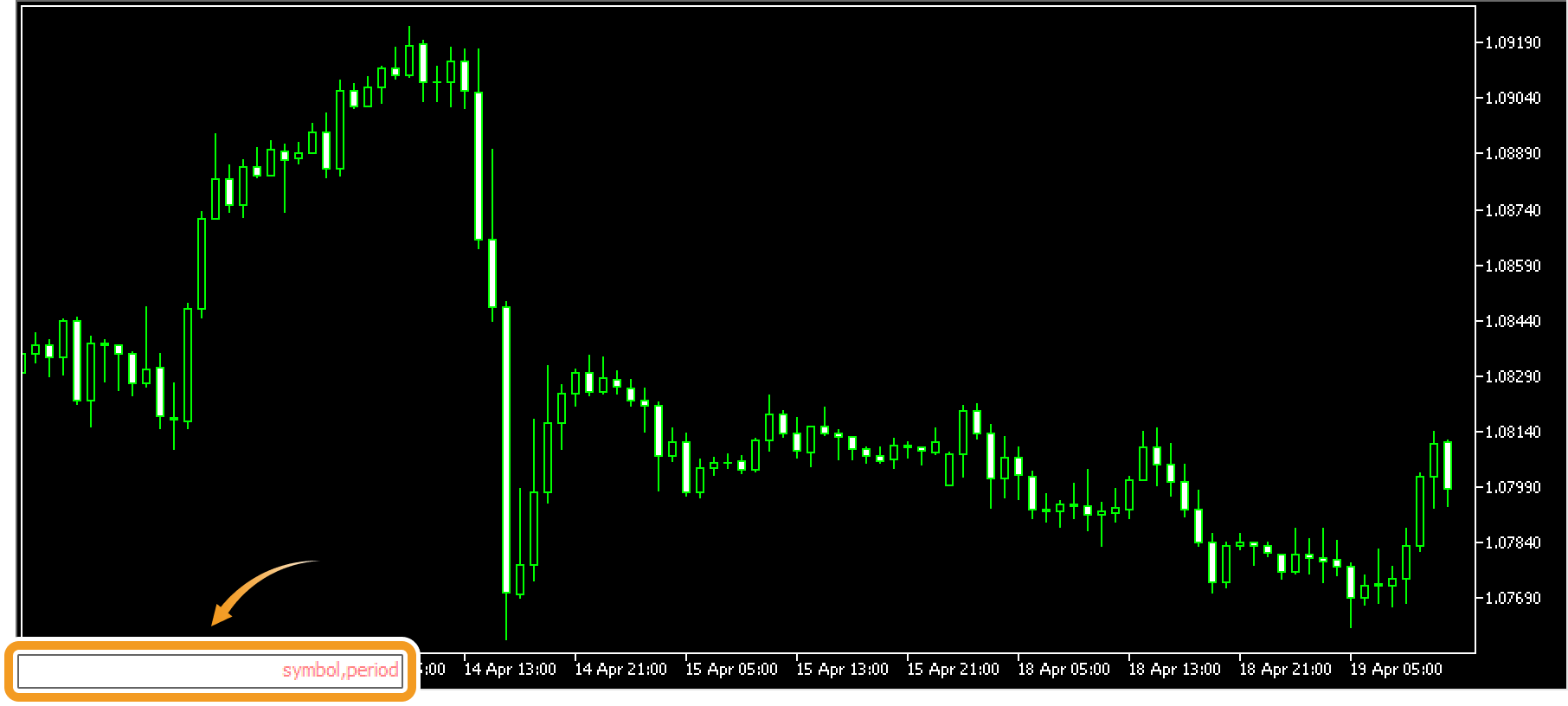
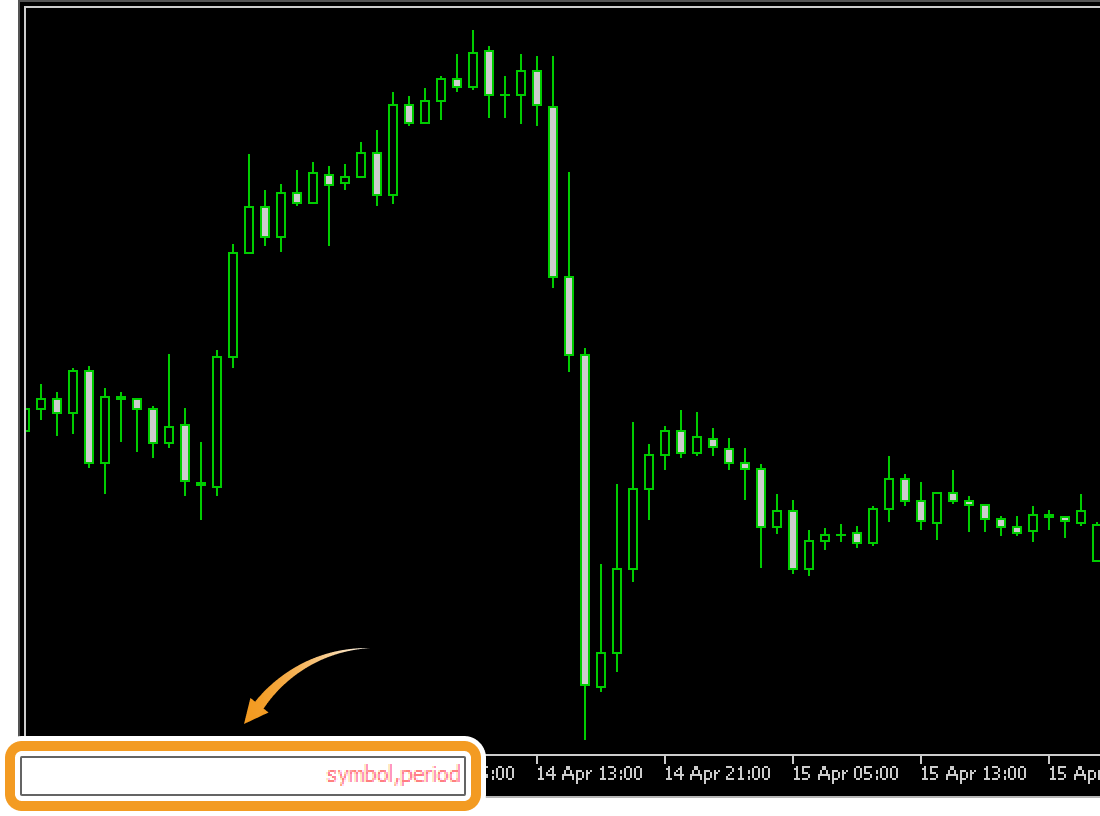
Type a symbol, timeframe, date and time in the following format to switch between charts.
| Item | Descriptions |
|---|---|
| Symbol | Enter the symbol name, e.g., to display a USDJPY chart, type "USDJPY". You need to add a symbol to the Market Watch, if it's not there. (*1)
Related article:Manage symbols in Market Watch |
| Timeframe | Enter "m1" for 1-minute timeframe, "h1" for 1-hour timeframe, "w1" for 1-week timeframe, and "mn" for monthly timeframe. E.g., to display a 30-minute chart, type "m30". |
| Date | Enter the date based on the MT5 server time. E.g., to display a chart for February 1st, 2021, type "2021.2.1" or "2021.02.01". (*2) |
| Time | Enter the time based on the MT5 server time. E.g., to display a chart for 7:05 AM of the current day, type "7:5" or "07:05". (*2) |
(*1)Some brokers include a suffix in the symbol name. Ensure you provide the full symbol name, including the suffix. For example, "USDJPYs".
(*2)The chart might not update if the historical data for the specified date has not been downloaded.
Turn off auto-scroll when specifying date
Even if you specify the date in the fast navigation bar to show the chart of a particular period, the chart will be updated to the current time unless "Scroll the chart to the end on tick incoming" is turned off. You can click the "Scroll the chart to the end on tick incoming" icon on the menu to turn it on and off.

 Parameters can be combined
On the fast navigation bar, you can combine various parameters such as date and time, or symbol and timeframe. When specifying several parameters, enter a half-width space between them. For instance, if you want to display the minute chart for USDJPY, enter "USDJPY m1".

Created
: 2022.08.05

Last updated
: 2026.03.18

Nakamaru is a manual production consultant at FINTECS, a company that specializes in creating manuals for their clients.
With a wide range of experience from fintech to entertainment, he presents what user-friendly manuals should be like.
He works with numerous large corporations as an external manual production project manager.
【Business information】
http://www.fintecs.co.jp/profile/
Akira Takagi
Systems engineer, MetaTrader administrator


After graduating from Computer Science at the Uninove, Brazil, in 2014, he has worked on various systems development projects.
He participated as a developer in the launch of forex services in 2019. Since then, he has also been involved in the development of MetaTrader plugins and APIs. He is certified by MetaQuotes as a MetaTrader5 Administrator and active in consulting and advisory as well.
We hope you find this article useful. Any comments or suggestions will be greatly appreciated.
We are also looking for writers with extensive experience in forex and crypto to join us.
please contact us at [email protected].

MT4/MT5: Change chart colors
2022.08.17
2026.04.20
There are three basic color schemes for MetaTrader4 (MT4) and four for MetaTrader5 (MT5). You can quickly change the chart colors using these schemes, and also customize the colors of each element, such as candlesticks and background. Here we will look at how to change chart colors in MT4/MT5.

MT4/MT5: If you can't see chart
2022.08.02
2026.03.26
Sometimes, MetaTrader4 (MT4) / MetaTrader5 (MT5) may fail to load charts, showing only the symbol name and timeframes. This issue can arise due to improper price data retrieval, login issues, an unstable internet connection, or the unavailability of the selected instrument.
MT4/MT5: Add space on the right side of chart
2022.07.27
2026.03.26
On MT4/MT5, you can add a space on the right side of the chart if you wish. You can adjust the width and place objects in the open space. Here we will look at how to add a space on the right side of the chart on MT4/MT5.
MT4/MT5: Show or hide items on chart
2022.07.22
2026.03.31
In MT4 and MT5, you can customize the items displayed on charts through the chart properties. MT4 offers 6 display options, while MT5 provides 11.

MT4/MT5: Use the crosshair mode
2022.07.22
2026.06.16
Here we will look at how to use the crosshair mode on MT4/MT5. You can use the crosshair mode to analyze the price transition over a specific period, as well as the time and price at the given point.

MT4/MT5: Adjust chart scale
2022.07.22
2026.03.26
On MT4/MT5, you can adjust the chart scale to show the part you want to see. If you move the horizontal time axis left and right, the scale on the vertical axis will change accordingly. Use this feature for chart analysis.
Disclaimer:
All information and content provided on this website is provided for informational purposes only and is not intended to solicit any investment. Although all efforts are made in order to ensure that the information is correct, no guarantee is provided for the accuracy of any content on this website. Any decision made shall be the responsibility of the investor and Myforex does not take any responsibility whatsoever regarding the use of any information provided herein.
The copyright in our content belongs to us.
We welcome your use of our content within appropriate limits, including use through our sharing features, sharing on social media, and quotation. However, please refrain from unauthorized reuse, including but not limited to commercial use, reproduction with modification of content, or reproduction on websites that compete with us. We may take necessary measures, including but not limited to deletion of the relevant content, if we consider that the content has been used in an inappropriate or unauthorized manner.



Myforex uses cookies to improve the convenience and functionality of this website. This website may include cookies not only by us but also by third parties (advertisers, log analysts, etc.) for the purpose of tracking the activities of users. Cookie policy